
How to 3D Print Overhangs Without Supports
Why FDM overhangs sag, what the 45° rule really measures, how bridges work, and the design and slicer changes that let you print without supports.
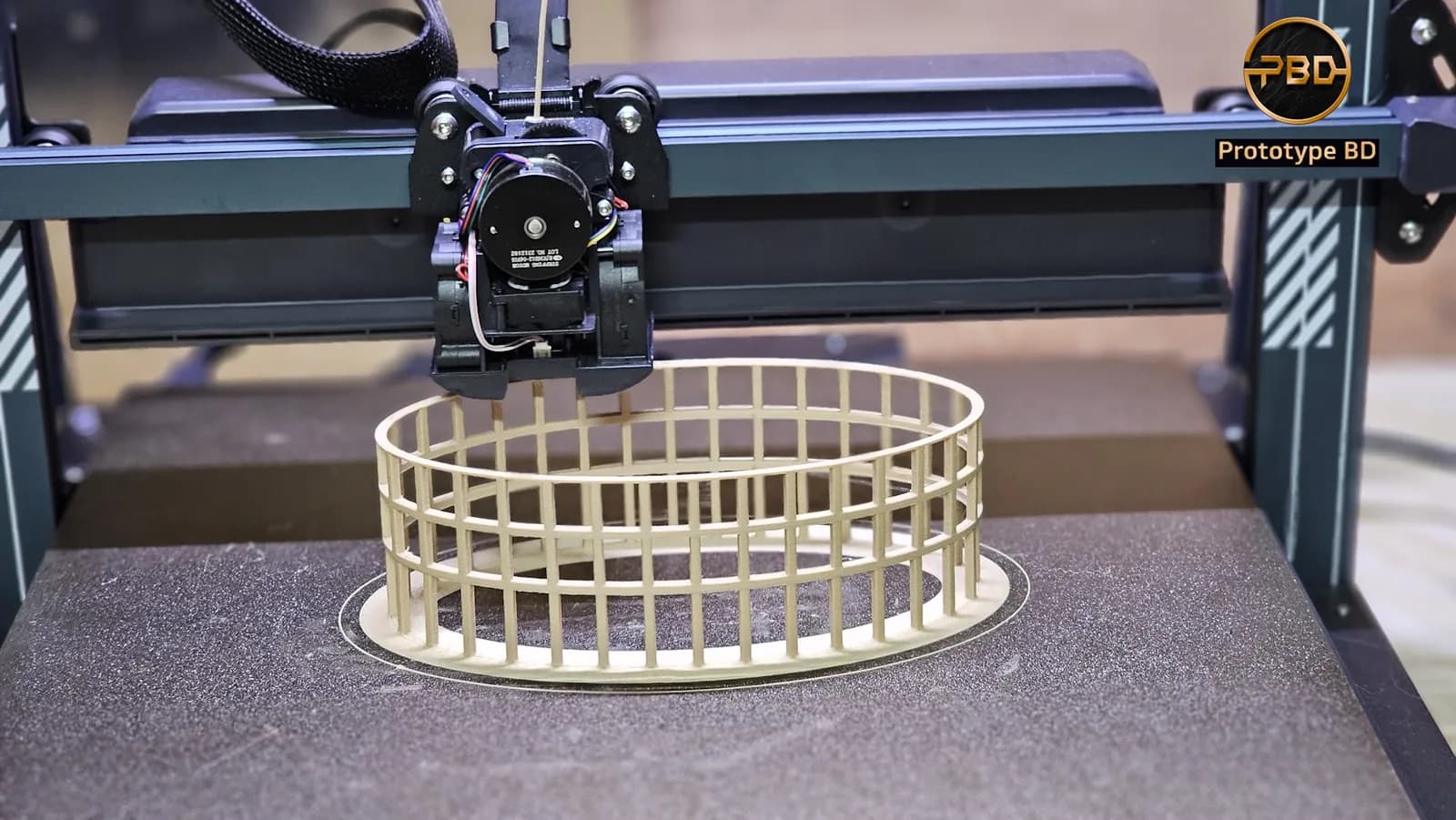
Every FDM printer builds a part one layer at a time, and every layer needs something under it. Where the model leans out over empty space, that support has to come from somewhere: the layer below, a bridge between two walls, or a removable support structure. This tutorial explains how to 3D print an overhang without support: what the 45° rule measures, how far a bridge can go, which design changes remove the problem, and which slicer settings help.
Short answer: keep overhangs within about 45° of vertical, turn flat ceilings into short bridges anchored at both ends, and redesign the rest: chamfers instead of bed-facing fillets, teardrop holes, split parts or a better orientation. Then help the printer with strong cooling, slower overhang walls and a test print on your own filament.
Why overhangs fail
A nozzle lays down a soft line of plastic. If most of that line sits on the layer below, it stays where it was put. If it sits mostly on air, it droops before it cools. Each layer can only stick out a little beyond the one under it, so a gentle slope builds up fine while a steep one curls and sags.
The FDM design guide from Protolabs Network (formerly Hubs) puts the usual limit at about 45°. Above that, the new layer tends to bulge downwards unless it is supported, and supported surfaces carry marks where the support touched them (Protolabs Network). Prusa makes the same point: surfaces printed on top of supports look rougher and less even than surfaces printed against the bed (Prusa Knowledge Base).
Supports also cost print time and material, and in tight spaces they can be impossible to get out. A dense architectural model with many closely stacked floor slabs is a typical case: support packed between the floors cannot be cleaned out without breaking the model.
The 45° rule, and why slicers seem to disagree
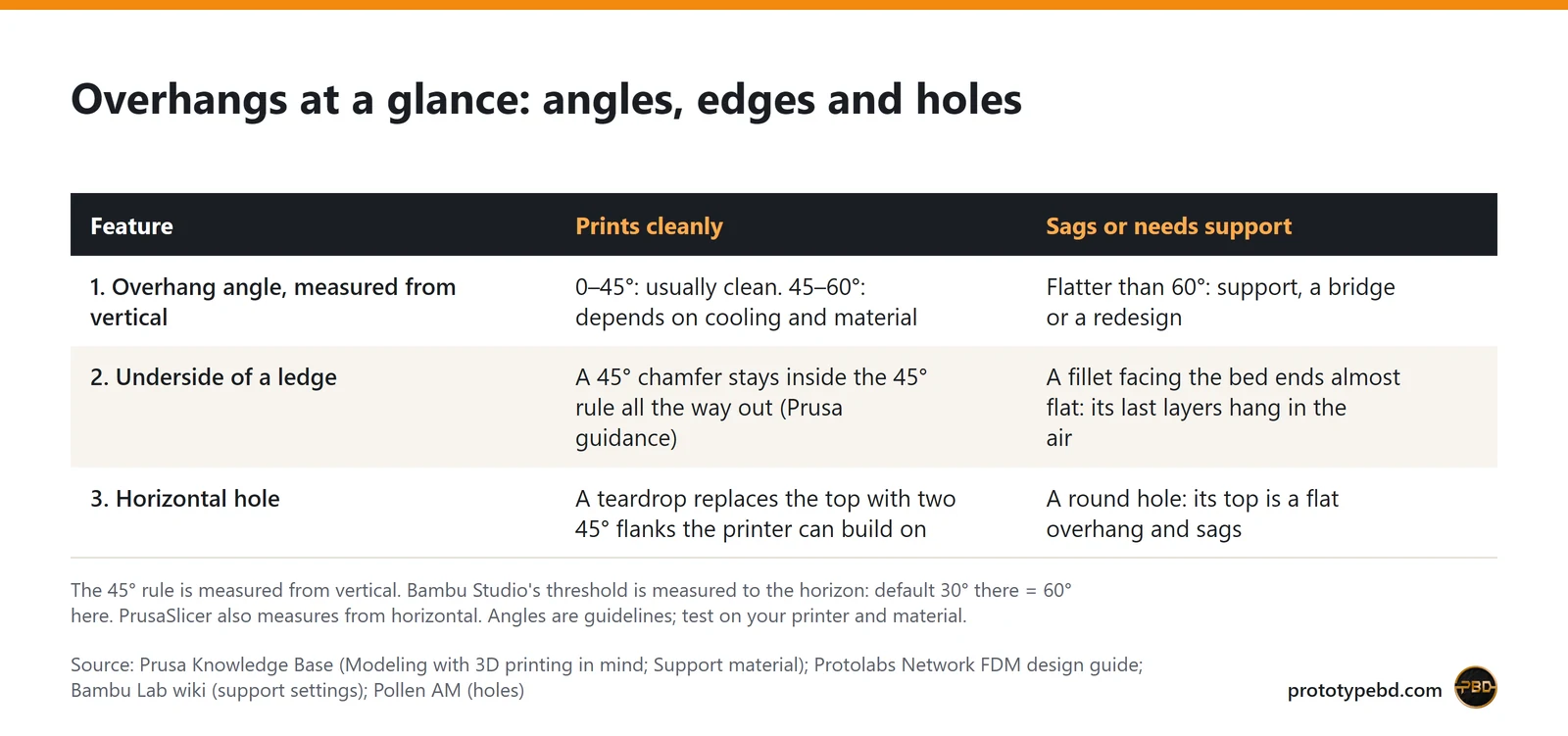
The 45° rule is measured from vertical. A vertical wall is 0°, and a flat ceiling is 90°. Prusa's modelling guide says printers can cleanly print overhangs of roughly 45–60°, depending on the nozzle and settings. It says some of its printers with all-round cooling reach 75°, and that a small 0.25 mm nozzle may manage less than 45° (Prusa).
Slicers often count the other way, which confuses people:
- Bambu Studio measures the threshold angle from the horizon. A surface flatter than the threshold gets support in auto mode, so a larger value means more support. The default is 30° (Bambu Lab wiki). That is the same as 60° from vertical.
- PrusaSlicer also measures its overhang threshold from the horizontal plane, with 90 meaning vertical (Prusa Knowledge Base).
Before you change a threshold, check which way your slicer counts, then preview the sliced layers. The number is a starting point; your printer, filament and fan decide the real limit.
Bridges: the other way to cross empty space
An overhang is attached on one side only. A bridge is a horizontal span anchored at both ends, like a lintel across a window. The printer stretches each line from one anchor to the other, and the line cools taut before it can sag much. That is why a flat ceiling between two walls can print cleanly while a flat ceiling with one free edge cannot.
Short bridges work best. Protolabs Network says some sagging or marking is always present unless the bridge is shorter than about 5 mm (Protolabs Network). Longer bridges often print well enough for hidden or rough surfaces, but test them first. PrusaSlicer has a "Don't support bridges" option that stops support being generated under bridged areas. Prusa also suggests placing a support enforcer in the middle of a long bridge to split it into two shorter ones (Prusa Knowledge Base).
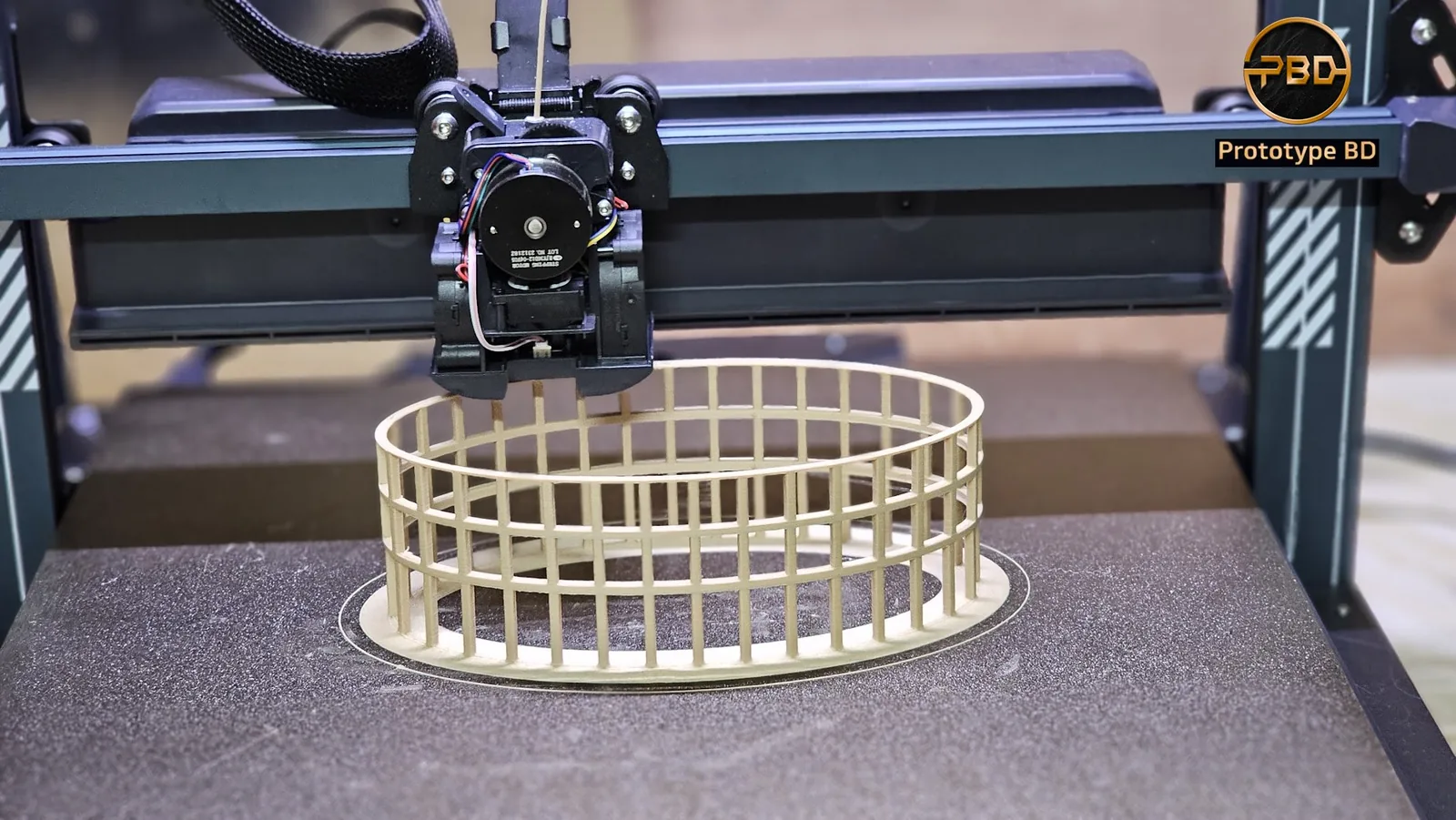
The colonnade above shows both ideas in one model. The columns are vertical and need nothing under them. The two horizontal rings join neighbouring columns, so each piece of ring behaves like a short bridge rather than a free overhang. Our March 2026 post credits careful printer calibration and material control.
Design changes that remove the need for support
The cheapest support is the one you never need. These changes are made in CAD, before slicing:
Use chamfers on edges that face the bed
A rounded fillet under a ledge starts vertical and ends almost flat, so its last few layers hang in the air. Prusa notes that fillets facing the print bed create a very steep overhang, and recommends a chamfer instead for a clean finish (Prusa). A 45° chamfer stays within the 45° rule all the way out. Protolabs Network also recommends a 45° chamfer or radius on edges that touch the build plate, which reduces elephant's foot and makes the part easier to remove (Protolabs Network).
Make horizontal holes teardrop-shaped
The top of a round hole that runs sideways through a part is a small flat ceiling, so it sags and the hole prints undersized. For holes that take a bolt or pin, a teardrop shape works well: the top of the circle becomes a point made of two sloping sides (Pollen AM). With 45° sides, the whole hole stays within the overhang rule. Another option is to rotate the part so the hole runs vertically, which removes the need for support (Protolabs Network).
Split the part and glue it
A shape that needs support in every orientation can often be cut into pieces that each sit flat on the bed. Protolabs Network and Prusa both suggest splitting complex models to reduce or remove support. Prusa adds that the surfaces to be glued should be smooth and clean, and that alignment pegs help the pieces line up (Protolabs Network, Prusa).
Choose the orientation deliberately
Turning a part can turn an overhang into a wall. Remember the trade-off: FDM parts are weaker across their layers than along them, so a load-bearing part should be oriented for strength first (Protolabs Network, Prusa).
Keep fine features printable
Very thin features fail whatever the angle. Prusa notes that walls thinner than one perimeter cannot be printed: with a 0.4 mm nozzle that is about 0.45 mm (Prusa).
Slicer settings that help overhangs and bridges
Slow down on overhangs
Bambu Lab explains that at high speed, fast wall printing makes overhang quality very bad, and it recommends lower wall speeds for models with obvious overhangs when you don't want supports. Its "Slow down for overhangs" setting groups wall lines by how much of each line hangs over air and prints the steeper ones slower (Bambu Lab wiki). OrcaSlicer has the same option with four speed tiers. Note that the tiers are set by the unsupported share of the line width, not by angle (OrcaSlicer wiki).
Cool overhangs harder
Polymaker notes that more cooling always helps steeper overhangs but reduces layer adhesion on most materials. It suggests maximum fan for PLA overhangs and minimal fan for ABS to avoid warping (Polymaker wiki). OrcaSlicer's "Force cooling for overhangs and bridges" sets a separate fan speed for overhangs and bridges once a chosen share of the line is unsupported (OrcaSlicer wiki).
Pick the material and layer height with overhangs in mind
Polymaker gives PLA with active cooling a typical support threshold of 55–60° from vertical, against 40–45° for ABS and ASA (Polymaker wiki). On layer height the sources pull in different directions. OrcaSlicer's wiki says smaller layers allow steeper overhangs because each layer steps out less (OrcaSlicer wiki). Polymaker warns that smaller layers also make the unsupported edge less rigid, and it favours a higher layer height with slow, consistent printing (Polymaker wiki). Try both on a short test print with your own filament.
Let the slicer reshape or reinforce the overhang
- Make overhang printable. OrcaSlicer can change the model's geometry so steep overhangs print without support, filling under them with conical material. Its wiki suggests a maximum angle of 45–60° for most printers and models (OrcaSlicer wiki). Bambu Studio has an option with the same name; users on Bambu's forum note that it changes the shape of your model (Bambu Lab forum). Use it for parts where that extra material doesn't matter.
- Extra perimeters and reverse on even. OrcaSlicer can add extra wall paths over steep overhangs, and reverse the wall direction on even layers. The wiki says reversing can greatly improve steep overhangs, but it may leave a texture on the outer wall (OrcaSlicer wiki).
- Bridge settings. Lowering the bridge flow ratio reduces sag on external bridges. Thick bridges make bridge lines as tall as the nozzle diameter: they are stronger and can span further, but they look rougher. Extra bridge layers add a second layer; the wiki recommends at least "External bridge only" (OrcaSlicer wiki).
- Arc overhangs (experimental). This technique prints a flat overhang as arcs that wrap around each other, aiming at 90° overhangs without support. It began as an open-source project, not a standard slicer setting. Its author recommends low temperature, full fan and very slow printing, and doubts it works well with ABS (arc-overhang on GitHub). Treat it as an experiment, not a production setting.
- Support only where needed. If a few spots truly need help, enforce support there instead of filling the whole model. Bambu Studio's tree supports branch up to the contact points instead of standing straight under every overhang (Bambu Lab wiki).
Change one setting at a time and print a small test piece with the same overhang or bridge before you commit to a long job.
Find your own printer's limit
Published angles are averages. A short test print tells you more about your machine than any rule of thumb:
- Model a small test strip with overhangs stepping from 30° to 70° from vertical in 5° steps, and a row of bridges from 5 mm up to 30 mm.
- Print it with the exact filament, nozzle, layer height and fan settings you plan to use.
- Note the steepest overhang that still looks clean and the longest bridge that does not sag visibly. Those two numbers are your real limits.
- Set the slicer's support threshold just inside that limit, and repeat the test when you change filament or nozzle.
What our own prints show
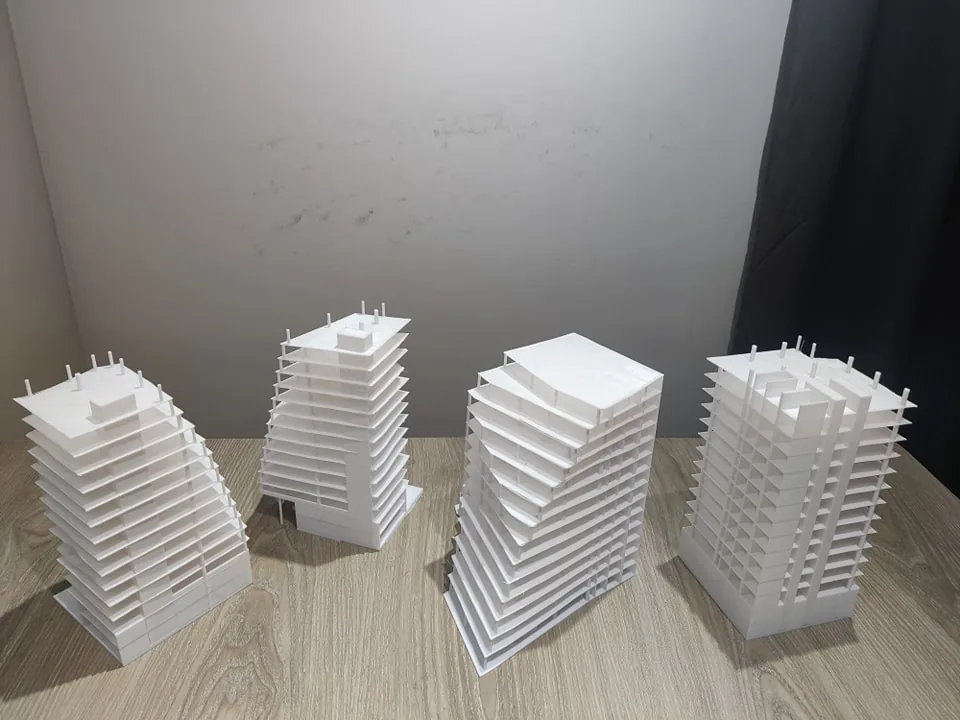
In January 2024 we printed a set of high-rise study models for an architecture project. Each model has many thin, flat floor slabs sticking out past slender columns, stacked closely one above the other. Support packed between those floors could never have been cleaned out, so the models had to print without it.
How we did it: there was no single trick. We tuned four things together: cooling, the orientation of the walls, the choice of material and the print speed. Much of the credit also goes to the printer itself: a machine with strong part cooling freezes each new line before it can droop. These are the same levers described in the slicer section above, used on one model at the same time rather than one at a time. We tuned them for that job and that filament, so treat them as a method to test, not a recipe of fixed numbers.
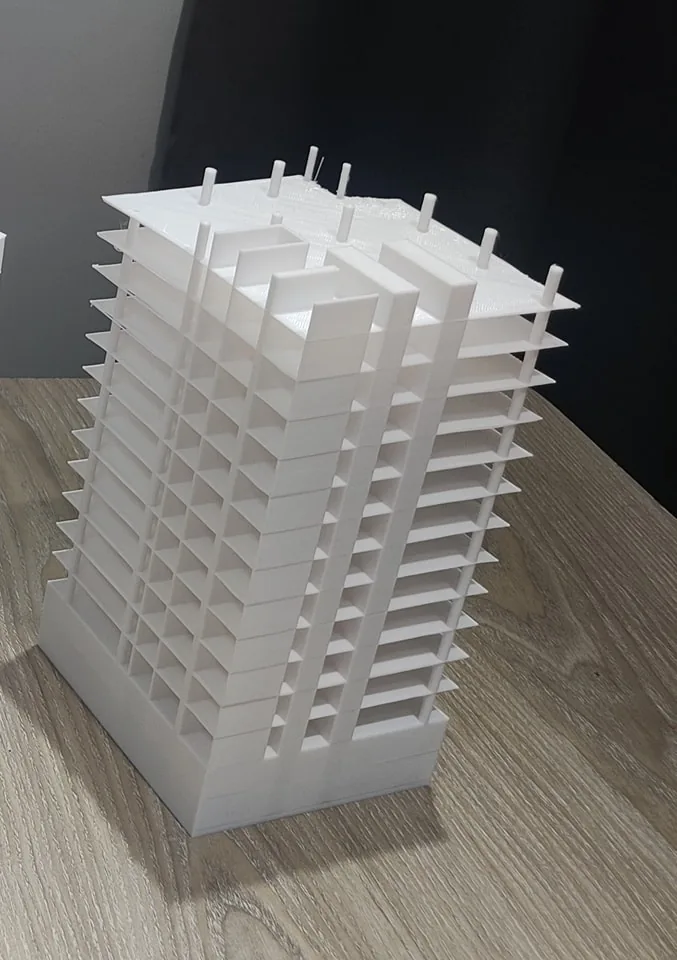
The photos also show the limits. The slabs are flat, at 90° to the columns, which is beyond what the 45° rule calls safe for a free overhang. Tuned cooling, speed, material and wall orientation got them printed, but not perfectly: the close-up shows a few stray strands on the roof slab. For a study model that is acceptable; for a polished presentation model, plan for light clean-up, or rethink the design with the CAD changes above.
We mostly use Bambu Lab P1S, P2S and X2D printers today, with a Creality Ender-5 Max for larger parts.
When supports, or a different process, are the better answer
Large flat undersides with one free edge, long unsupported spans and organic shapes with deep undercuts usually still need support. Bambu Lab notes that the interface layers of the support can be printed in a separate support filament. If the interface is the same filament as the part, it recommends a top Z distance of about 0.2 mm, because zero makes the support very hard to remove (Bambu Lab wiki). For very fine detail, resin printing behaves differently from FDM; our SLA resin printing page covers that service.
FAQ
What is the steepest overhang an FDM printer can print without support?
About 45° from vertical is the safe guideline. Prusa says 45–60° is usually clean, and up to 75° on some of its well-cooled printers (Prusa). Your own test print is the real answer.
How long can a bridge be?
Under about 5 mm a bridge should come out with little or no sag (Protolabs Network). Longer bridges can work with good cooling and tuned bridge settings, but test them first.
Get it printed or redesigned
If you already have a model, upload it on our FDM 3D printing quote page. STL, 3MF and OBJ files get an automatic price; STEP and STP files are accepted too, but staff price them by hand. Supports change the material and print time, so they show up in the price too. If the part needs rethinking for printing, the CAD design service turns sketches, photos or drawings into manufacturable 3D CAD. That is the place to add chamfers, teardrop holes or split lines. Printing at home? Browse our filament range.
Related articles
FDM vs SLA: which 3D printing process suits your part
FDM for parts that must work, SLA resin for parts that must look perfect up close. A sourced comparison of detail, strength, size, cost, post-processing and safety, with a checklist.

3D Printer Filament Guide for Bangladesh: PLA, PETG, ABS, ASA, TPU and Composites
Which 3D printer filament to use for which part, how the common materials compare on heat and moisture, and how to store filament in Bangladesh's humid climate.
Architectural Model 3D Printing in Bangladesh: Scale, Files and Finish
How to plan a 3D-printed architectural model in Bangladesh: when printing beats hand-making, which scale works, how thin walls can be, how big one piece can be, and what to send.
Comments
Loading comments…